Red Hat Enterprise 7.0 Installation using LVM partitioning
On this installation I used VMWARE to do the install on Red Hat Enterprise Linux 7.0

Note: i have used the iso on April 2014 release so likely this is not the latest kernel that was out June 2014 release. Latest kernel should be kernel 3.10.0-123.

Then again nothing differs from the installation procedure.
Boot the installation media and you will be redirected to RHEL 7 Splash Screen
Choose to “Install Red Hat Enterprise Linux 7.0”

On the next page: you need to select appropriate language for your preference
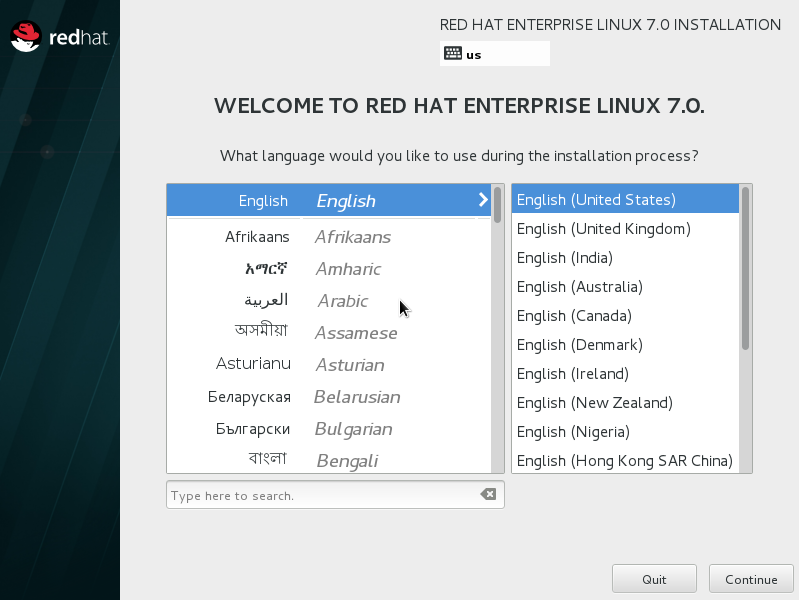
Then select “Continue” you will get into the Installation summary:
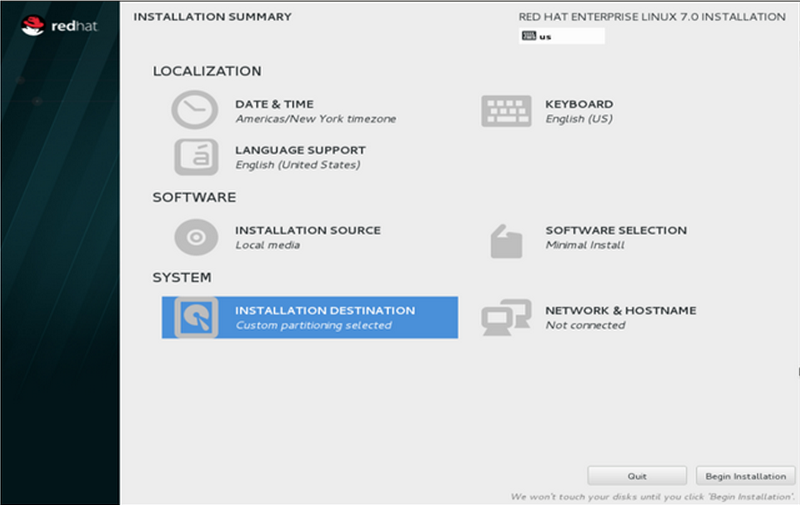
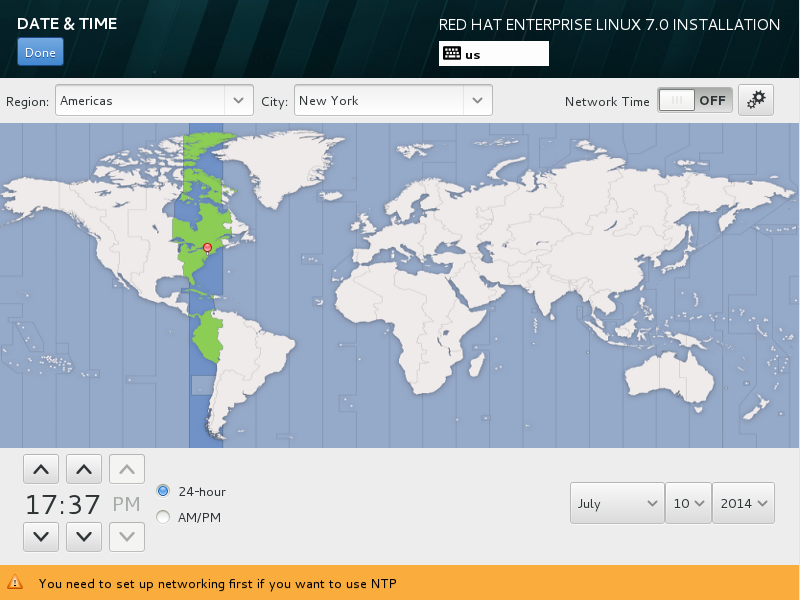
Select “Date and Time” under Installation Summary to customize your server timezone and then Network time enables you to configure an NTP server using the gear icon. Select “Done” when completed.
Select “Keyboard Layout” under Installation Summary to customize your keyboard profile and make changes based on your keyboard layout preference. Select “Done” when completed.

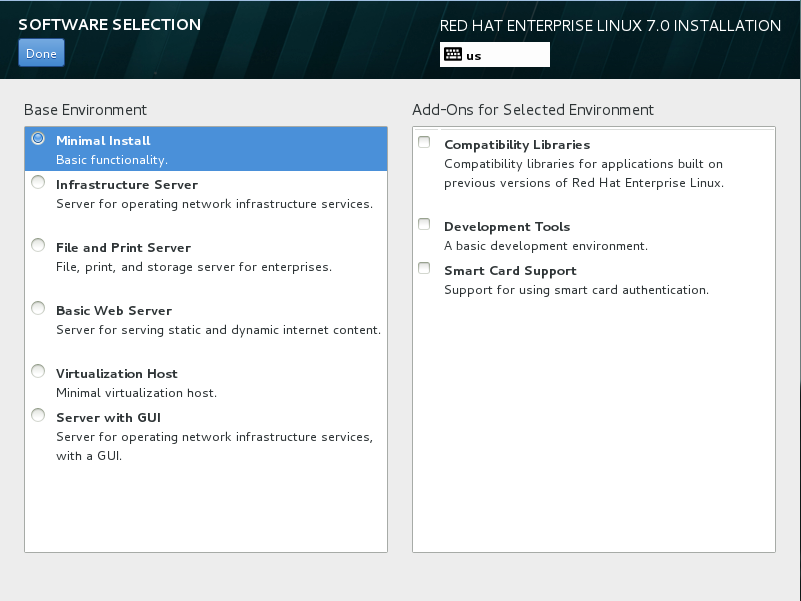
Select “Software Selection” to customize the base environment you wanted to install then select “Done”
I always set things to Minimal Install and get to install those things I would need on later part.
Note: on Minimal Install please note that net-tools package is not included in the installation causing ifconfig command not to work.
Select “Network & Hostname” Tick the “ON” button to make sure that the Ethernet activate during system boot up. Then just below enter your desired hostname.
Note: hostname can be change anytime and network link can be set to Onboot anytime.

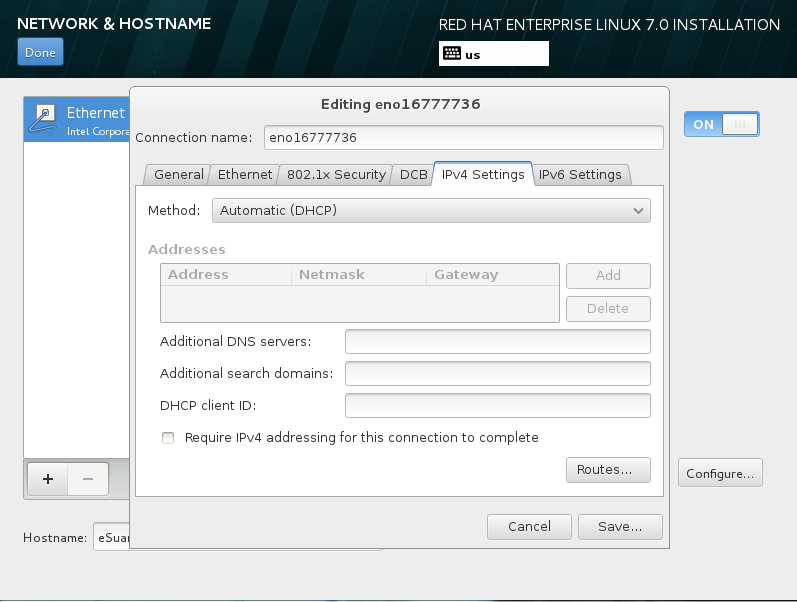
Customize the network setting by selecting “Configure” then set everything based on your network preference:
Select done and you will get back to the “Installation Summary” then select the “Installation destination”
Select your hard disk under local standard disk then under other storage option choose “I will configure partitioning”

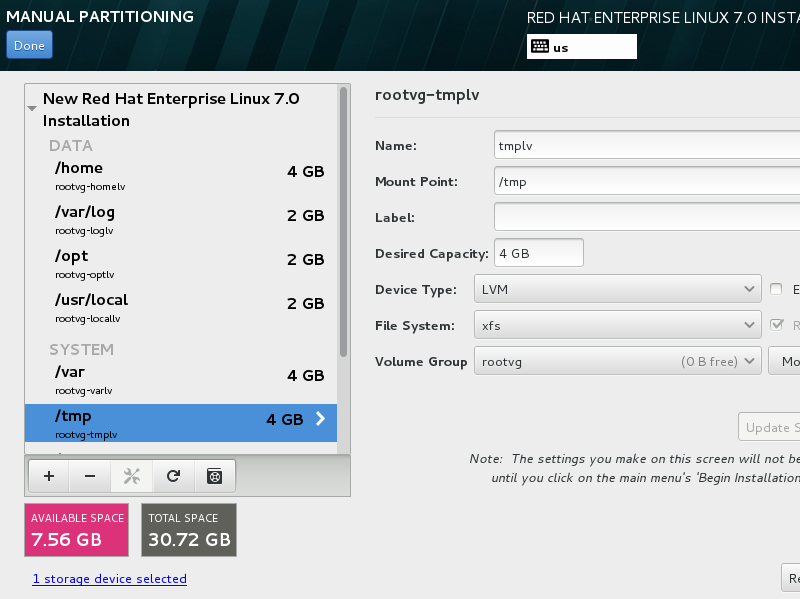
After clicking done you will be redirected to manual partitioning and use volume group for the rest partition except for boot
When partitioning disk I do suggest to use the LVM as it offers flexibility in terms of dynamic volume resizing, spanning volume on multiple disk, shrinking volume sizes and disaster recovery.
detail explanation:
http://smallbusiness.chron.com/pro-cons-creating-logical-volumes-linux-78311.html
First splash screen when doing manual partitioning.

My Sample partition:

Select “Done” then screen pop out click accept changes

Click “Begin installation”
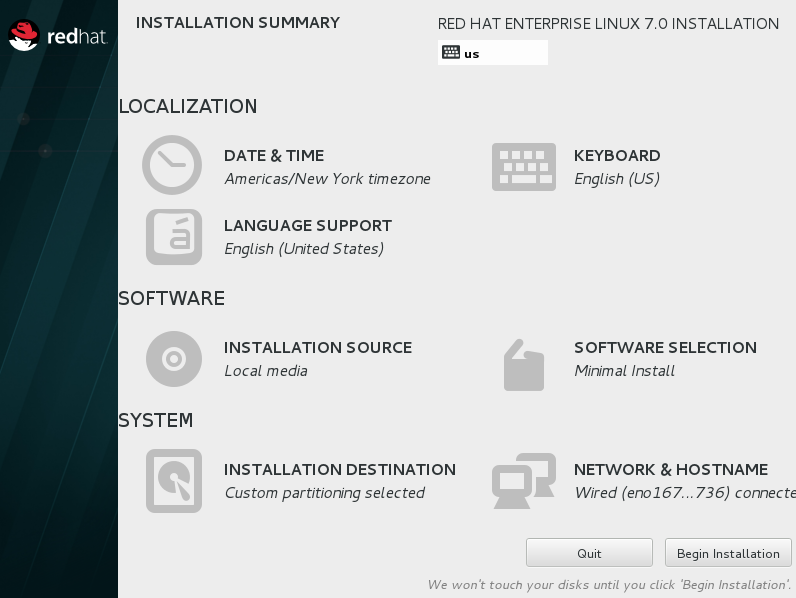
You will be redirected to this screen: now you can customize your root password and create your initial user.
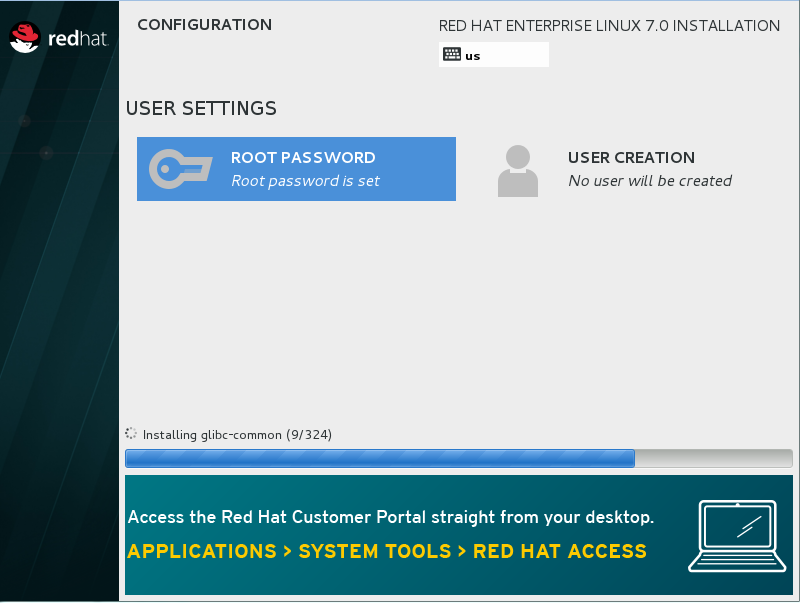
Change root password

User account creation
I actually prefer creating accounts after installation but for sake of this installation guide here how it would look like.

Complete installation by choosing reboot

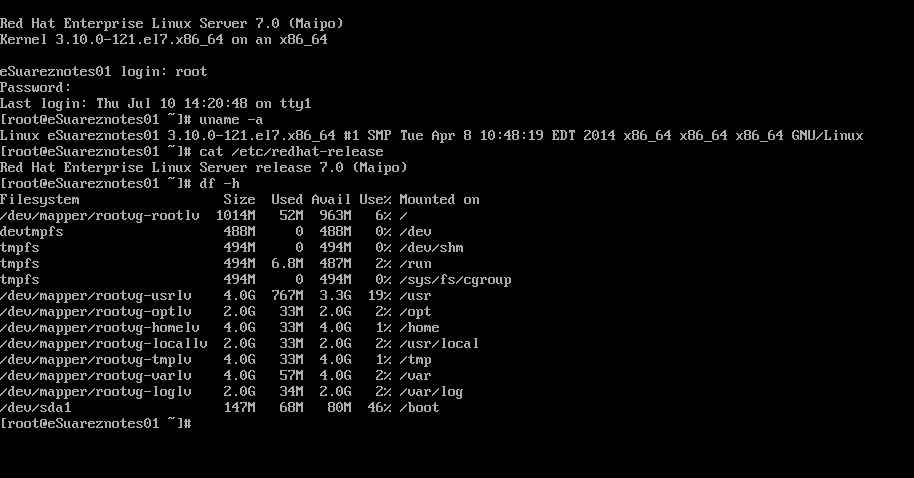
Install complete:
 eSuarez Notes